Transfer content from a deprovisioned user
This article outlines how a workspace owner can transfer content from a member who has been deprovisioned from an Enterprise Plan workspace.
When a user is deleted, deprovisioned, or leaves a workspace, they may leave behind pages they owned. This feature allows a workspace owner of an Enterprise Plan workspace to transfer this content to another, current user so the work isn't lost.
What happens to each page depends on who could see it:
Pages only that person could see are moved to the recipient. They show up in the recipient's Private section, grouped under a new page called "Transferred pages of {name}."
Pages they owned but had already shared with other people stay where they are. The recipient gets full access to each one, and a link to it is added to that same "Transferred pages of {name}" page.
Some pages aren't transferred:
Pages that get their access from a parent page or teamspace, like most teamspace pages.
Pages in trash.
Pages the whole workspace already has full access to.
A workspace owner is able to reassign the content of a user who has recently left the workspace if:
The user is not currently part of the workspace (they have been deprovisioned).
The user had pages.
The user’s pages were not already reassigned to another user.
The user was part of the workspace fewer than 30 days ago.
The workspace is on an Enterprise Plan subscription.
Go to
Settingsand click theMemberssection.Navigate to the
Recently leftusers tab.For the user who has been deprovisioned (the “recently left user”), choose the member who should receive their pages. Each person in the list shows their email next to their name, so you can tell apart two people who share a name.
In the confirmation window, select the
Transfer pagesbutton to continue.Notion adds a new page called "Transferred pages of {name}" to the recipient's Private section. Pages only the departed user could see are moved inside it. Pages they'd already shared with others stay in place, and this page collects a link to each one. The recipient now has full access to all of these pages.

Note: A user who has had all their pages reassigned will no longer be visible in the Recently left list.
Enterprise plan workspace owners can use the Content Transfer API to transfer pages from recently removed workspace members to another member. This API requires the same eligibility criteria mentioned above.
To use this API, Enterprise Plan workspace owners can:
Create a new internal integration with the
Transfer contentcapability.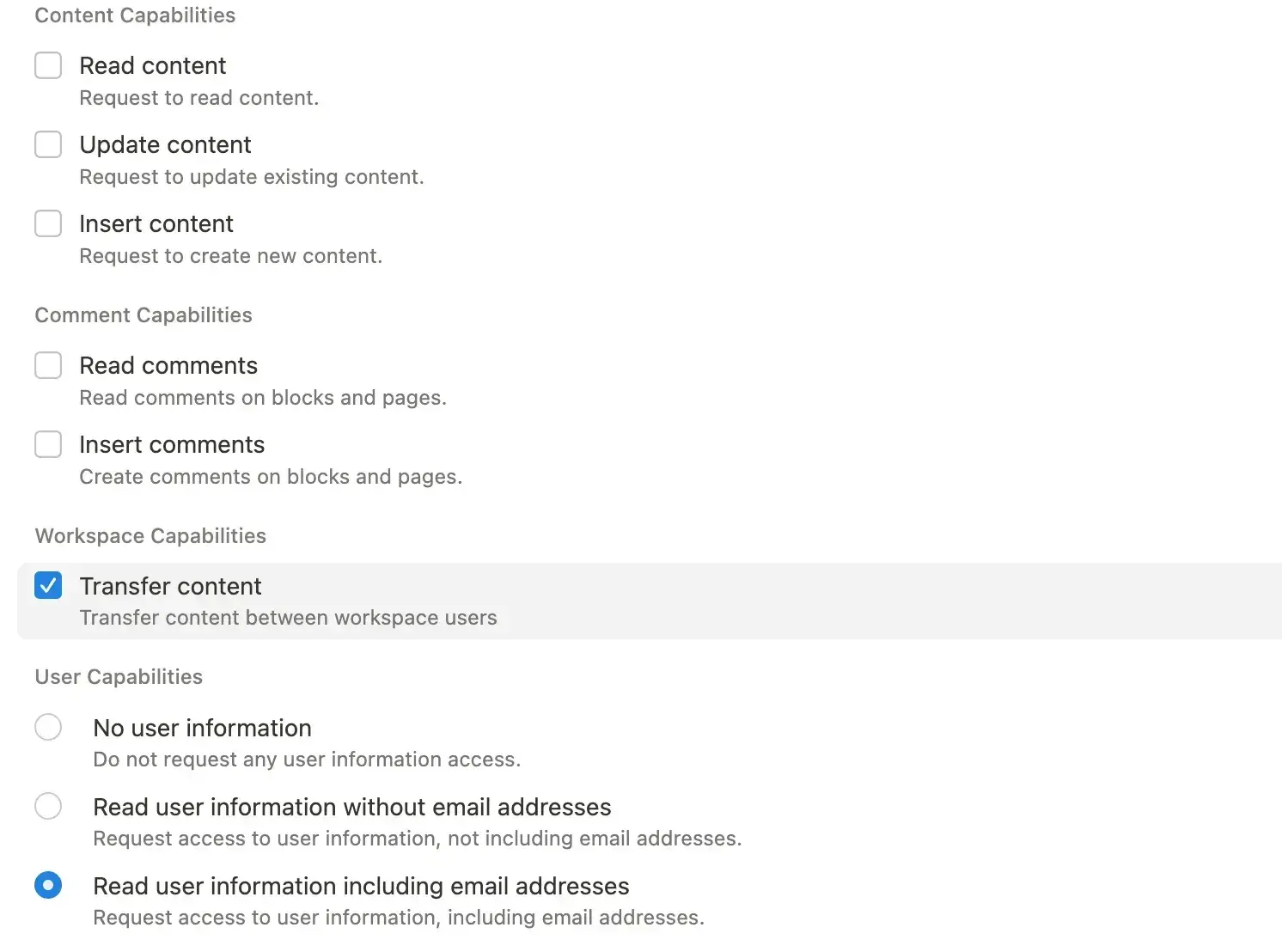
Use the following API call for transferring content:
curl -X POST '<https://api.notion.com/v1/users/transfer>' \\
-H 'Authorization: Bearer <token>' \\
-H 'Notion-Version: 2022-06-28' \\
-H "Content-Type: application/json" \\
-d '{ "from_user_id": <from_user_id>,"to_user_id":<to_user_id>}'
The
from_user_idrepresents the removed user. If you’re using the SCIM webhook, the user_id is included in the payload.The
to_user_idrepresents the recipient of the transferred content. You can retrieve this user_id by querying the Notion Public API using the list users API endpoint or using the API provided by your Identity Provider. For instance, Okta provides the listAppUsers API. The externalID of the appUser is the notion user ID.
curl '<https://api.notion.com/v1/users>' \\\\
-H 'Authorization: Bearer '"$NOTION_API_KEY"'' \\\\
-H "Notion-Version: 2022-06-28"
3. The API will return a failure response if the validation fails. Validations can fail if the from user is still in the workspace, or the workspace is not on the Enterprise Plan. If the validation passes, the API will return a success response and start processing the transfer. When the transfer is complete, transferred content should appear in the recipient's Notion content. The recipient will also receive an inbox and email notification.
If a user has left and rejoined a workspace within the last 30 days, workspace owners will be able to restore their private pages, shared pages, group membership, and teamspace membership.
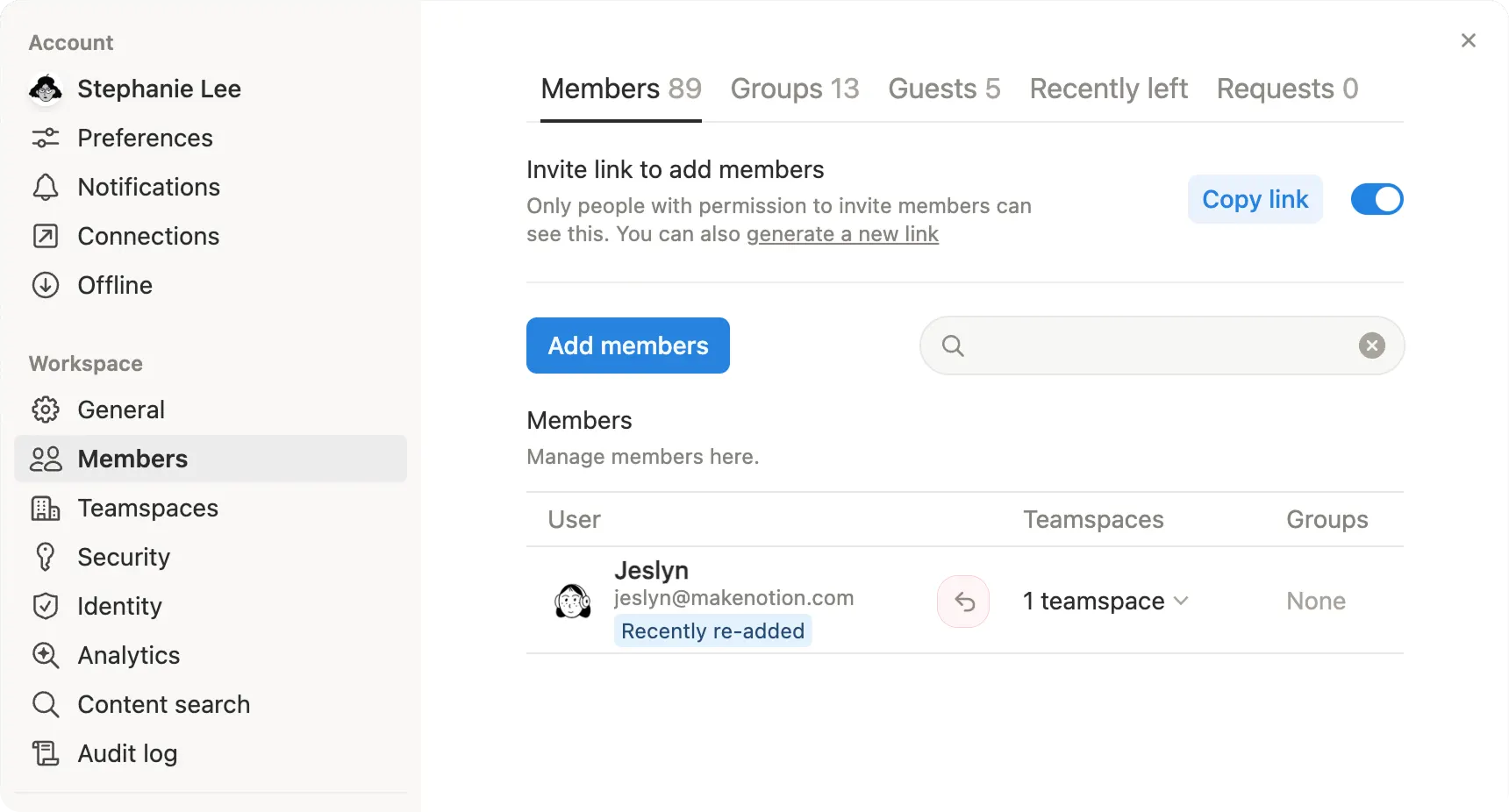
To do this, simply go to Settings → People or Members (depending on your plan) and add a member back to your workspace. Once they’re readded, select the arrow next to their name in the same settings to restore their access and content.